API Keys & Webhooks
Integrate Bambuddy with external tools using API keys and webhooks.
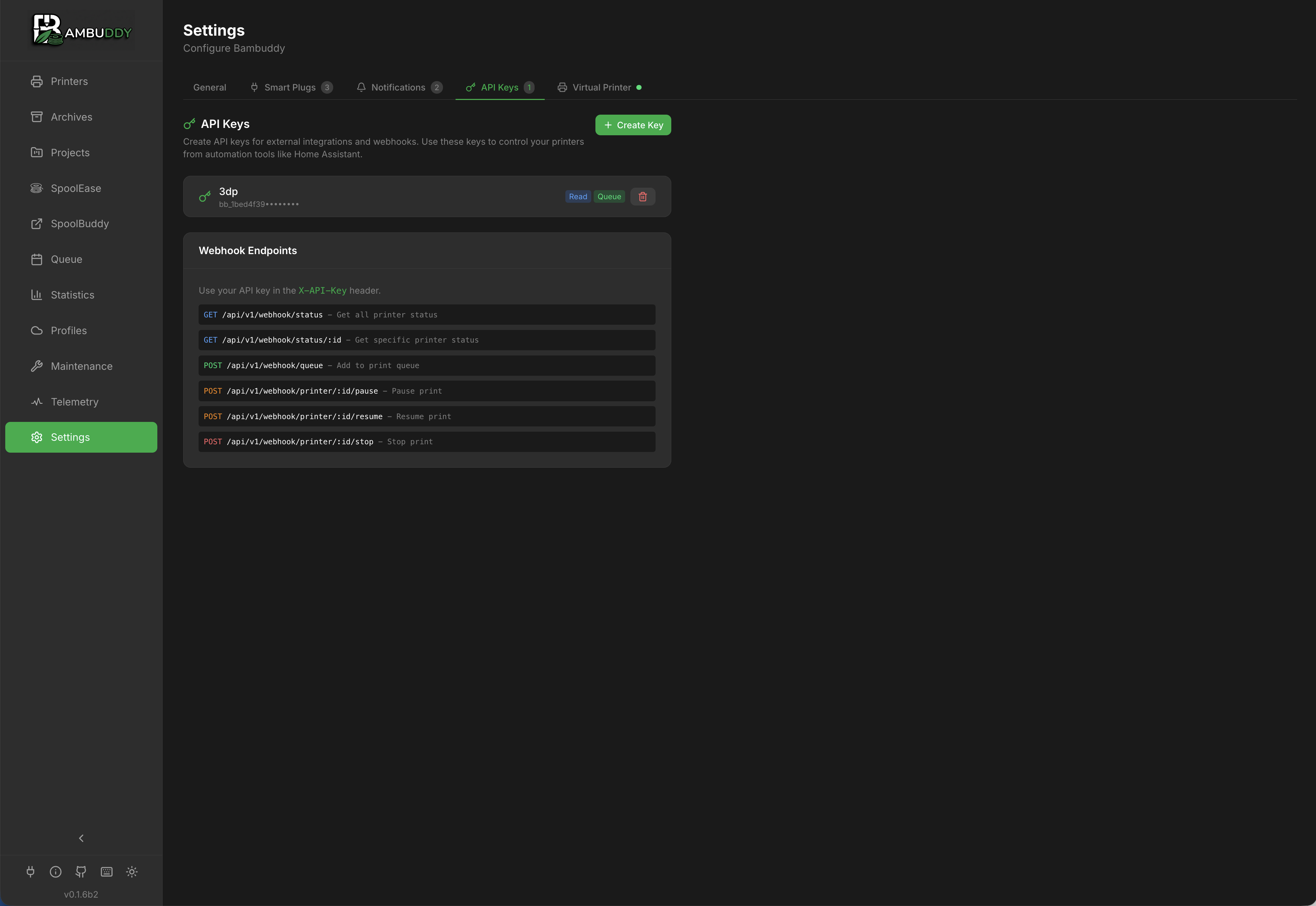
API Keys
Overview
API keys allow external applications to:
- Access Bambuddy data
- Trigger actions
- Integrate with automation tools
Creating an API Key
- Go to Settings > API Keys
- Click Create API Key
- Enter a name (e.g., "Home Assistant")
- Select permissions
- Click Create
- Copy the key immediately - it won't be shown again!
Save Your Key
API keys are shown only once at creation. Store it securely.
Permissions
Available Permissions
| Permission | Allows |
|---|---|
| Read Printers | View printer status |
| Control Printers | Start/stop/pause prints |
| Read Archives | View archive data |
| Write Archives | Edit/delete archives |
| Read Statistics | View statistics |
| Read Queue | View print queue |
| Write Queue | Add/remove from queue |
| Read Settings | View configuration |
| Write Settings | Modify configuration |
| Admin | Full access |
Principle of Least Privilege
Only grant permissions that are needed:
- Read-only for dashboards
- Control for automation
- Admin only when necessary
Using the API
Authentication
Include the API key in request headers:
Base URL
Common Endpoints
| Endpoint | Method | Description |
|---|---|---|
/printers | GET | List all printers |
/printers/{id} | GET | Get printer details |
/printers/{id}/status | GET | Get printer status |
/archives | GET | List archives |
/archives/{id} | GET | Get archive details |
/queue | GET | View print queue |
/queue | POST | Add to queue |
/statistics | GET | Get statistics |
See API Reference for complete documentation.
Interactive API Browser
Bambuddy includes a built-in API browser for testing endpoints directly in the interface.
Accessing the API Browser
The API Browser appears in the right column of the API Keys settings page.
- Go to Settings > API Keys
- Scroll to see the API Browser on the right
Features
- Auto-discovery - All endpoints loaded from OpenAPI schema
- Grouped by category - Printers, archives, settings, etc.
- Parameter inputs - Fill in path, query, and body parameters
- Request body examples - Pre-filled from schema
- Live execution - Test requests and see responses
- Response display - Formatted JSON with status and timing
- Search - Filter endpoints across categories
Using with API Keys
- Paste an API key in the "API Key for Testing" input
- Expand an endpoint and fill in parameters
- Click Execute to make the request
- View the response below
New Key Shortcut
After creating a new API key, click Use in API Browser to automatically add it for testing.
Webhooks
Outgoing Webhooks
Bambuddy can send notifications to external URLs:
- Go to Settings > Notifications
- Add a Webhook provider
- Enter your endpoint URL
- Configure events to trigger
Payload Format
{
  "event": "print_complete",
  "timestamp": "2024-01-15T14:30:00Z",
  "data": {
    "printer": "Workshop X1C",
    "filename": "benchy.3mf",
    "duration": 8100,
    "filament_used": 45.2,
    "filament_details": "PLA: 30.0g | PETG: 15.2g",
    "status": "success"
  }
}
For failed/stopped prints, filament_used is scaled by progress and additional fields are included:
{
  "event": "print_failed",
  "timestamp": "2024-01-15T15:15:00Z",
  "data": {
    "printer": "Workshop X1C",
    "filename": "benchy.3mf",
    "duration": 2700,
    "filament_used": 7.6,
    "filament_details": "PLA: 7.6g",
    "progress": 50,
    "reason": "Filament runout",
    "status": "failed"
  }
}
Events
| Event | Trigger |
|---|---|
print_started | Print begins |
print_progress | Progress milestone |
print_complete | Print finishes (includes filament usage) |
print_failed | Print fails (includes scaled filament usage and progress) |
print_stopped | Manual cancellation (includes scaled filament usage and progress) |
printer_offline | Connection lost |
printer_error | HMS error |
Integration Examples
Home Assistant
Use REST sensors to display status:
sensor:
  - platform: rest
    name: "Bambuddy Printer Status"
    resource: "http://bambuddy:8000/api/v1/printers/1/status"
    headers:
      X-API-Key: "your-api-key"
    value_template: "{{ value_json.state }}"
    json_attributes:
      - progress
      - remaining_time
      - temperature
Trigger automations on webhook events.
Node-RED
Use HTTP request nodes with API key authentication.
IFTTT / Zapier
Use webhook triggers and actions.
Managing API Keys
Viewing Keys
See all API keys in Settings:
- Name
- Created date
- Last used
- Permissions
Revoking Keys
Delete keys that are no longer needed:
- Find the key in the list
- Click Delete
- Confirm deletion
Key is immediately invalidated.
Rotating Keys
Best practice: Rotate keys periodically:
- Create new key
- Update applications
- Delete old key
Security Best Practices
Key Storage
- Never commit keys to version control
- Use environment variables
- Store in secrets managers
Network Security
- Use HTTPS for external access
- Limit API access to trusted IPs if possible
- Consider VPN for remote access
Monitoring
- Review API key usage
- Check for unauthorized access
- Revoke unused keys
Permissions
- Use minimum required permissions
- Create separate keys per application
- Avoid using admin keys in automation
Troubleshooting
401 Unauthorized
- Check API key is correct
- Verify key hasn't been revoked
- Ensure header name is
X-API-Key
403 Forbidden
- Check key has required permissions
- Verify endpoint matches permissions
Tips
Descriptive Names
Name keys after their purpose: "Home Assistant Dashboard" not "key1".
Separate Keys
Use different keys for different applications for easy management.
Regular Audit
Review API keys periodically and remove unused ones.
Test First
Test API calls manually before implementing in automation.
Document Usage
Keep notes on which keys are used where.