Cloud Profiles
Manage and compare your Bambu Cloud slicer presets directly from Bambuddy.
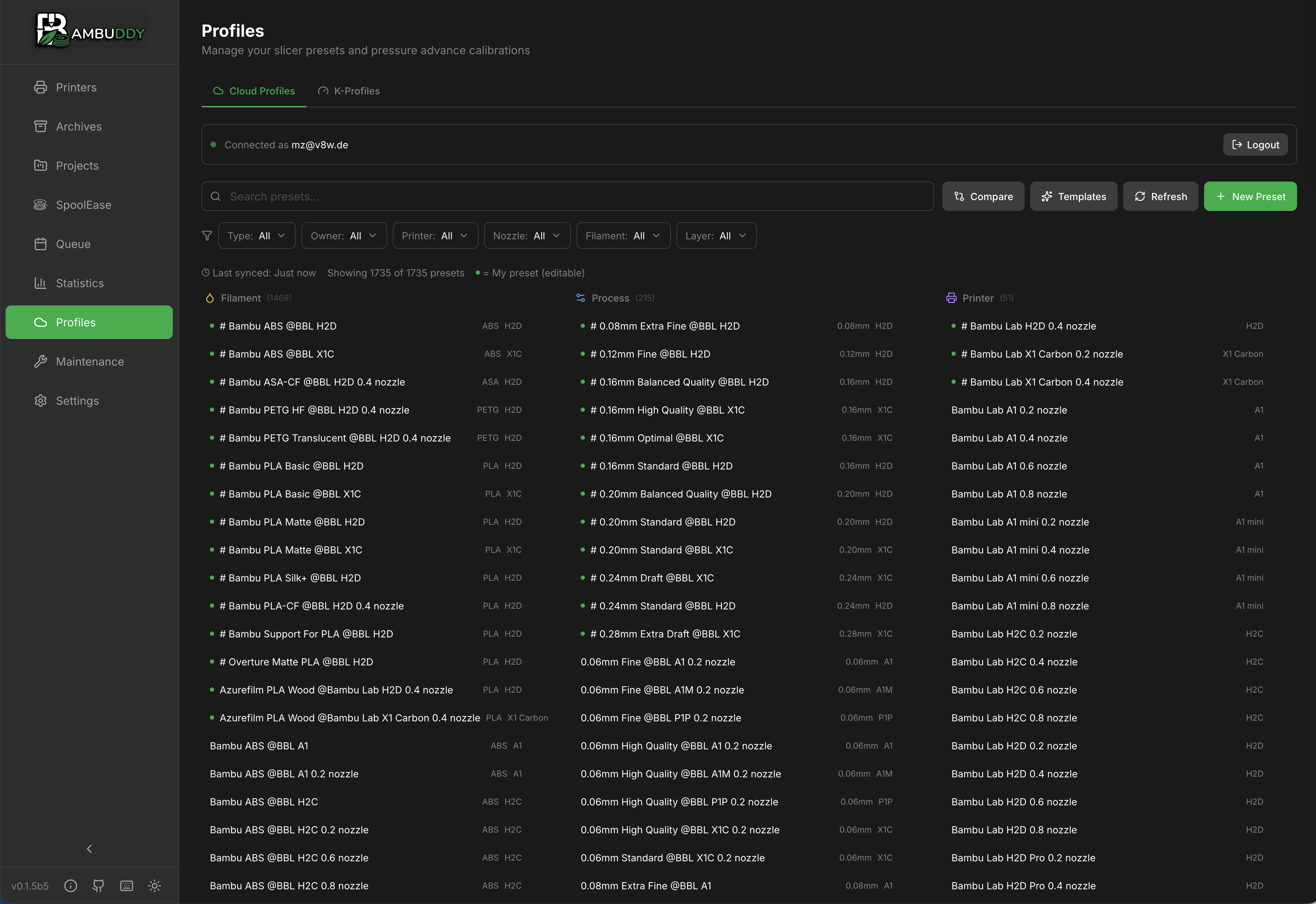
Overview
Bambu Cloud Profiles lets you:
- View your cloud slicer presets
- Compare template differences
- Manage visibility and organization
- Track preset versions
Authentication
Connecting to Bambu Cloud
- Go to Cloud Profiles page
- Click Connect to Bambu Cloud
- Enter your Bambu Cloud credentials
- Click Login
- Complete 2FA verification (see below)
Multi-User Instances
When authentication is enabled, each user has their own independent Bambu Cloud login. Your cloud credentials are stored on your user account — logging in or out does not affect other users. The cloud:auth permission is required to use Cloud Profiles.
Two-Factor Authentication (2FA)
Bambuddy supports both types of Bambu Cloud 2FA:
| Method | Description |
|---|---|
| Email Verification | A 6-digit code is sent to your email |
| TOTP (Authenticator App) | Use your authenticator app (Google Authenticator, Authy, etc.) |
The login flow automatically detects which method your account uses:
- Email: You'll see "Verification code sent to your email"
- TOTP: You'll see "Enter code from your authenticator app"
TOTP Recommended
If you have an authenticator app set up on your Bambu account, the login will be faster since you don't need to wait for an email.
Access Token Login
If email/password login doesn't work for you (e.g., SSO account, region issues), you can log in using a Bambu Cloud access token:
- Click Use access token instead on the login page
- Obtain your access token using one of the methods below
- Paste it into Bambuddy and click Set Token
How to Obtain an Access Token
The access token is retrieved by authenticating via the Bambu Lab API (it is not available in the Bambu Studio UI). Common methods:
| Method | Description |
|---|---|
| Python script (recommended) | Use a library like bambu-lab-cloud-api to handle the login flow — it sends your credentials, prompts for the email verification code, and returns the token |
| Manual API call | POST to https://api.bambulab.com/v1/user-service/user/login with your email/password, complete email verification, and extract the accessToken from the response |
Token details
- The token is typically valid for 3 months
- Scripts often save it to a local file (e.g.,
~/.bambu_token) for reuse - This is the Cloud Access Token (for API/MQTT) — do not confuse it with the Printer Access Code (found on the printer screen under Network settings, used for local LAN connections only)
When to use token login
Access token login is useful when email/2FA login fails or when your Bambu account uses a third-party SSO provider that Bambuddy can't authenticate against directly.
Credentials Storage
Credentials are stored locally and only used to access your presets.
Connection Status
| Status | Description |
|---|---|
| Connected | Authenticated and synced |
| Disconnected | Not authenticated |
| Syncing | Fetching latest presets |
Viewing Profiles
Profile Types
| Type | Description |
|---|---|
| Filament | Material settings |
| Process | Print settings |
| Printer | Machine settings |
Profile Information
Each profile displays:
- Name
- Type (filament/process/printer)
- Modified date
- Visibility status
- Sync status
Comparing Profiles
Compare profiles to understand differences:
Comparing Templates
- Select a profile
- Click Compare with Template
- View differences highlighted
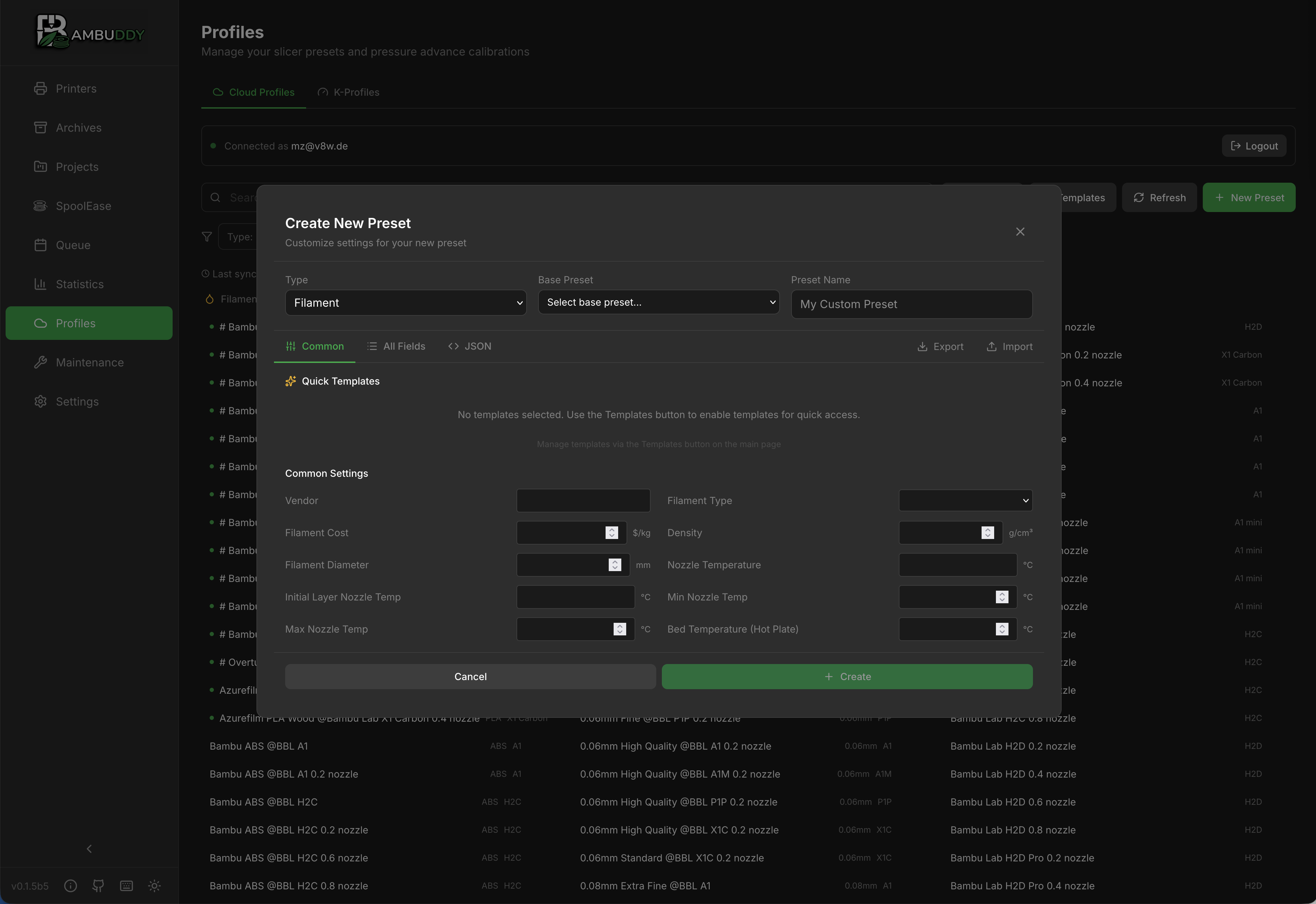
Diff View
| Color | Meaning |
|---|---|
| Green | Added/New value |
| Red | Removed/Old value |
| Orange | Changed value |
What's Compared
- Temperature settings
- Speed settings
- Retraction settings
- Cooling settings
- Support settings
- And more...
Visibility Control
Template Visibility
Control which presets appear in Bambu Studio:
| Status | In Bambu Studio |
|---|---|
| Visible | Shows in preset list |
| Hidden | Hidden from list |
Changing Visibility
- Find the profile
- Click the visibility toggle
- Changes sync to cloud
Declutter
Hide presets you don't use to keep Bambu Studio organized.
Syncing
Manual Sync
Click Sync to fetch latest presets from cloud.
What Syncs
- Profile names and settings
- Visibility status
- Modified timestamps
Sync Direction
Currently read-only from Bambu Cloud:
- View presets
- Compare with templates
- Edit preset values (use Bambu Studio)
Filtering Profiles
Filter Options
| Filter | Description |
|---|---|
| Type | Filament, Process, Printer |
| Visibility | Visible, Hidden, All |
| Search | Text search in names |
Sorting
Sort profiles by:
- Name (A-Z, Z-A)
- Modified date
- Type
Using Profiles
In Bambu Studio
- Open Bambu Studio
- Sign in to Bambu Cloud
- Access synced profiles
- Apply to prints
From Bambuddy
View profiles but don't edit:
- Reference settings
- Compare versions
- Track what you have
Version Tracking
Modified Dates
Each profile shows when it was last modified:
- Helps track changes
- Identify recent updates
Template Comparison
Compare your profile to the original template:
- See what you've customized
- Identify drift from defaults
- Reset to template if needed
Troubleshooting
Authentication Failed
- Verify credentials are correct
- Check internet connection
- Ensure Bambu Cloud is accessible
- Try logging out and back in
- For TOTP: Ensure your device time is synchronized (TOTP codes are time-based)
- If all else fails, try the access token method instead (see Access Token Login)
TOTP Code Not Working
- Check your device time is accurate (enable automatic time sync)
- Make sure you're using the correct account in your authenticator app
- Try waiting for a new code (codes expire every 30 seconds)
- If persistent, try disabling and re-enabling TOTP on your Bambu account
Profiles Not Showing
- Click Sync to refresh
- Check filters aren't hiding profiles
- Verify cloud account has profiles
- Check connection status
Sync Issues
- Check network connectivity
- Try manual sync
- Re-authenticate if needed
- Check Bambu Cloud status
Tips
Regular Sync
Sync after making changes in Bambu Studio to keep Bambuddy current.
Compare Before Printing
Compare profiles to understand differences before choosing one.
Organize with Visibility
Hide unused presets to keep your active presets easy to find.
Document Changes
When you modify a profile significantly, note what you changed.