Cloud Profiles
Manage and compare your Bambu Cloud slicer presets directly from Bambuddy.
Looking for Orca Cloud?
Bambuddy also supports syncing profiles from your OrcaSlicer Cloud account — see Orca Cloud Profiles. Both clouds work side by side; you can connect to either, both, or neither.
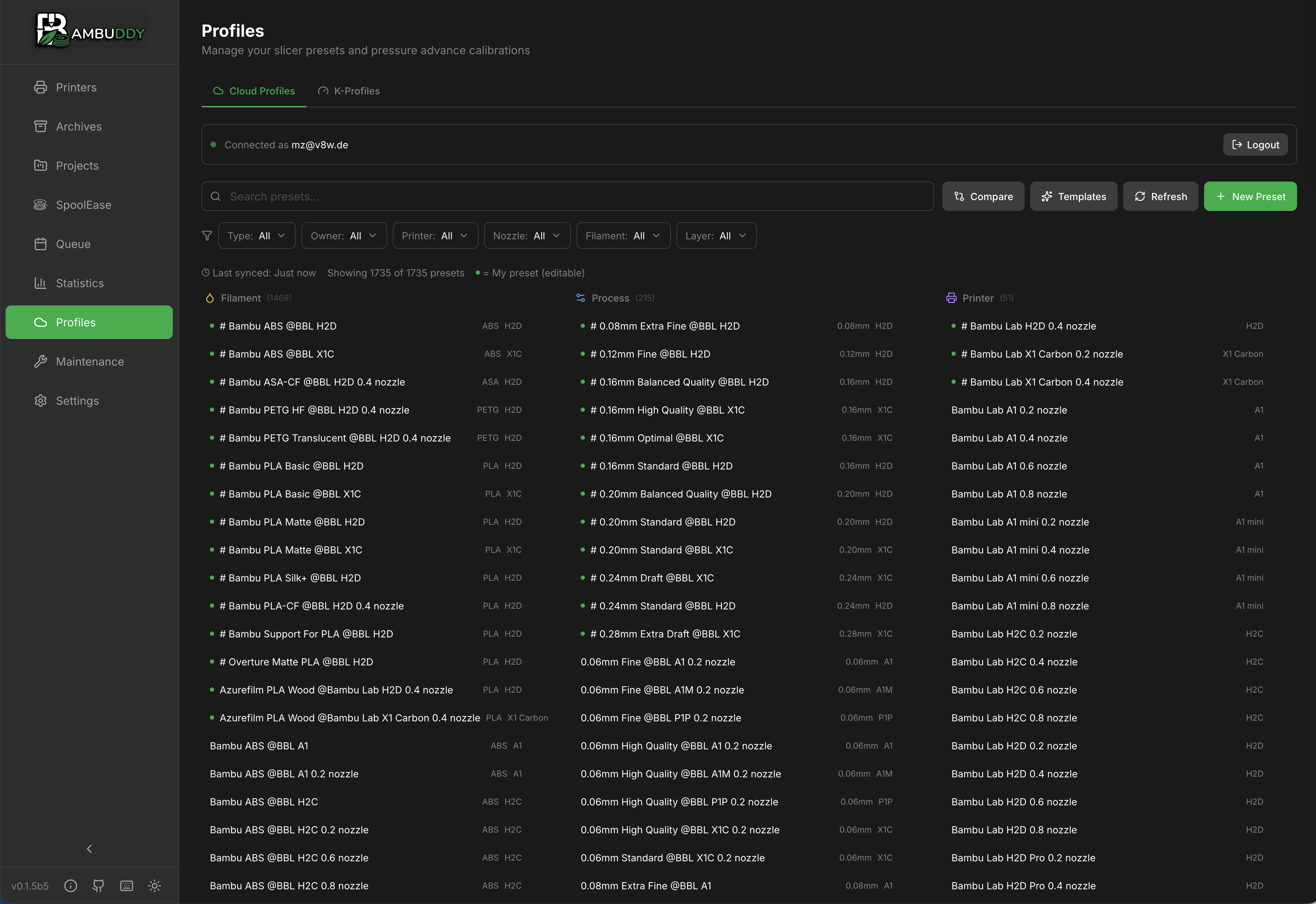
Overview
Bambu Cloud Profiles lets you:
- View your cloud slicer presets
- Compare template differences
- Manage visibility and organization
- Track preset versions
Authentication
Connecting to Bambu Cloud
- Go to Cloud Profiles page
- Click Connect to Bambu Cloud
- Enter your Bambu Cloud credentials
- Click Login
- Complete 2FA verification (see below)
Multi-User Instances
When authentication is enabled, each user has their own independent Bambu Cloud login. Your cloud credentials are stored on your user account — logging in or out does not affect other users. The cloud:auth permission is required to use Cloud Profiles.
Headless / API access
Want to read your cloud presets and filament catalogue from a script or CI pipeline? Create an API key with Allow cloud access enabled — see API Keys → Cloud Access Scope. The key will read on its owner's behalf using your stored Bambu Cloud login; no second sign-in needed.
Two-Factor Authentication (2FA)
Bambuddy supports both types of Bambu Cloud 2FA:
| Method | Description |
|---|---|
| Email Verification | A 6-digit code is sent to your email |
| TOTP (Authenticator App) | Use your authenticator app (Google Authenticator, Authy, etc.) |
The login flow automatically detects which method your account uses:
- Email: You'll see "Verification code sent to your email"
- TOTP: You'll see "Enter code from your authenticator app"
TOTP Recommended
If you have an authenticator app set up on your Bambu account, the login will be faster since you don't need to wait for an email.
Access Token Login
If email/password login doesn't work for you, you can log in using a Bambu Cloud access token instead:
- Click Use access token instead on the login page
- Pick your Region (Global or China) — must match where you registered your Bambu account
- Obtain your access token using one of the methods below
- Paste it into Bambuddy and click Set Token
China-region accounts must use token login
Bambu Lab China accounts (bambulab.cn) are tied to phone numbers, not email addresses. The email / password flow in Bambuddy's login form is unusable for these accounts — token login is the only path. Select Region: China before pasting the token so Bambuddy validates it against api.bambulab.cn instead of the global endpoint.
How to Obtain an Access Token
The access token is not available in the Bambu Studio UI and Bambu Lab no longer exposes it on their profile page either. The two reliable methods today:
Method 1: MakerWorld cookie (works for both regions)
The same token cookie MakerWorld stores in your browser session is the Cloud Access Token. Easiest path:
- Open MakerWorld (global) or MakerWorld 中国 (China) in your browser and log in.
- Press
F12to open Developer Tools. - Go to Application (Chrome / Edge) or Storage (Firefox) → Cookies → the MakerWorld domain.
- Select the row whose name is
token. - Copy the Cookie Value from the panel at the bottom.
- Paste it into Bambuddy's Access Token field (with the matching Region selected) and click Set Token.
Treat the token like a password
It grants access to your Bambu Cloud account, including print history and MakerWorld actions. Don't paste it into GitHub issues, screenshots, or chat threads. Bambuddy stores it locally on your server only.
Method 2: Python script (Global region only)
Use a library like bambu-lab-cloud-api to handle the login flow — it sends your credentials, prompts for the email verification code, and returns the token. Targets the global api.bambulab.com endpoint only; doesn't work for China-region accounts because those don't accept email login.
Token details
- The token is typically valid for 3 months, then needs re-issuing the same way.
- Scripts often save it to a local file (e.g.,
~/.bambu_token) for reuse. - This is the Cloud Access Token (for the cloud API / MQTT) — do not confuse it with the Printer Access Code (found on the printer screen under Network settings; used for local LAN connections only).
When to use token login
- You're on a China-region account (required — see note above).
- Email / 2FA login fails on the global region.
- Your account uses a third-party SSO provider that Bambuddy can't authenticate against directly.
Credentials Storage
Credentials are stored locally and only used to access your presets.
Connection Status
| Status | Description |
|---|---|
| Connected | Authenticated and synced |
| Disconnected | Not authenticated |
| Sign-in expired | A token is stored, but Bambu Lab no longer accepts it |
| Syncing | Fetching latest presets |
Bambuddy checks the stored token against Bambu Lab rather than assuming it still works, so Connected means Bambu accepted it, not merely that one is saved. The answer is cached for a few minutes, and if Bambu Lab is unreachable the last known status is kept — an outage on their side will not sign you out.
When the sign-in expires
Bambu Lab's access token is not permanent, and Bambu provides no way to renew it without signing in again. When it lapses, every Bambu Cloud feature stops at once — cloud profiles, MakerWorld imports, slicer presets and printer firmware checks — because they all use the same token.
Bambuddy will tell you: the Profiles page shows the login form again with a "Bambu Cloud sign-in expired" notice, and MakerWorld disables its import buttons rather than letting a download fail. Sign in again on the Profiles page and everything resumes. Nothing else needs to be reconfigured.
When Bambu asks for a CAPTCHA
Sometimes the login form answers with a panel saying Bambu Cloud is asking for a CAPTCHA. Bambu's anti-abuse layer has flagged your network, and no sign-in will be accepted until it clears — nothing you type will help, and the challenge cannot be answered from Bambuddy because a CAPTCHA needs a real browser.
It is tied to your public IP address rather than to your account, and normally clears by itself within a few hours. Retrying repeatedly extends it, so Bambuddy holds sign-in requests back for five minutes after seeing a challenge. Use Access Token Login to connect in the meantime — that path does not go through the challenged endpoint. See Bambu Cloud is asking for a CAPTCHA.
Viewing Profiles
Profile Types
| Type | Description |
|---|---|
| Filament | Material settings |
| Process | Print settings |
| Printer | Machine settings |
Profile Information
Each profile displays:
- Name
- Type (filament/process/printer)
- Modified date
- Visibility status
- Sync status
Comparing Profiles
Compare profiles to understand differences:
Comparing Templates
- Select a profile
- Click Compare with Template
- View differences highlighted
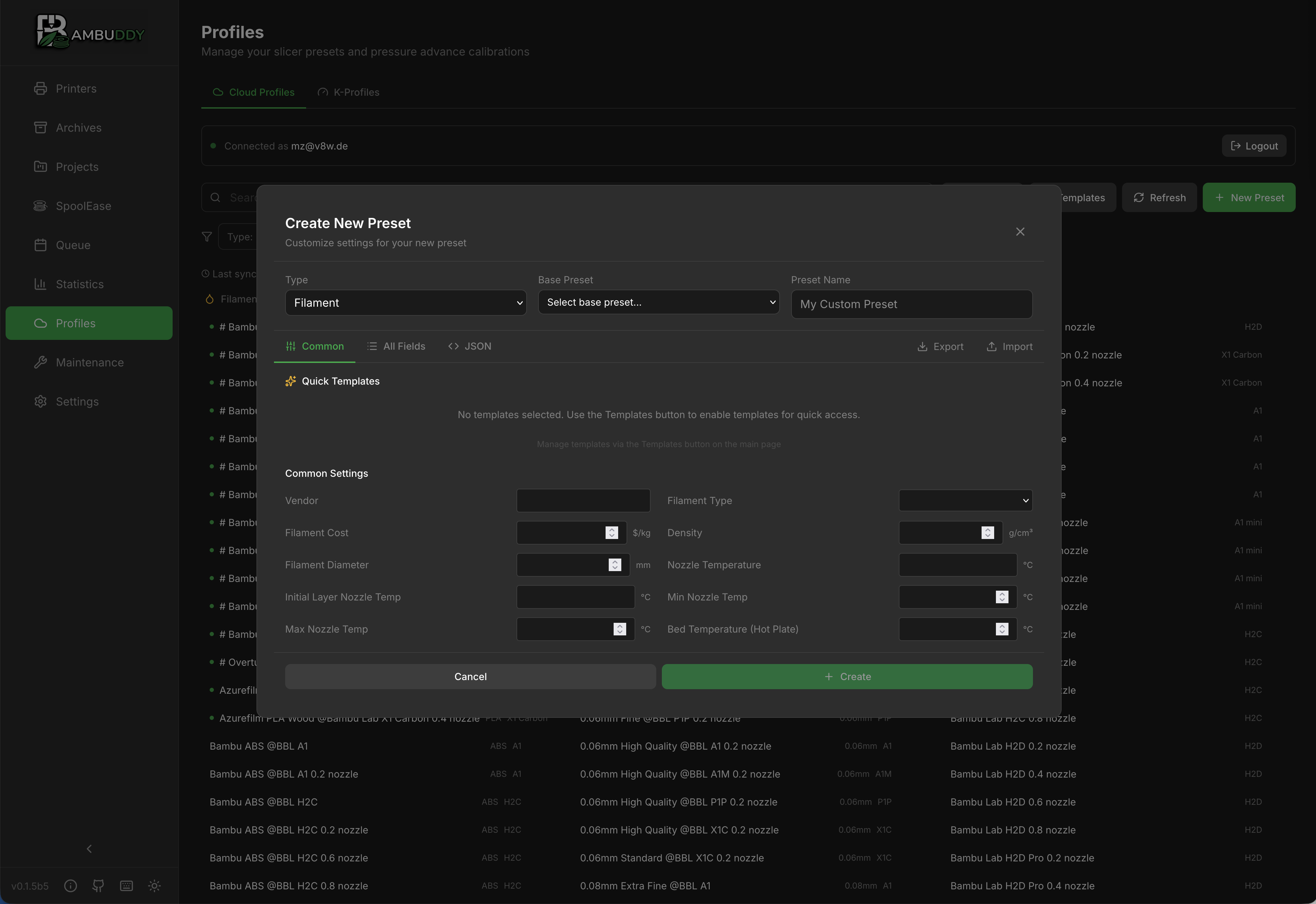
Diff View
| Color | Meaning |
|---|---|
| Green | Added/New value |
| Red | Removed/Old value |
| Orange | Changed value |
What's Compared
- Temperature settings
- Speed settings
- Retraction settings
- Cooling settings
- Support settings
- And more...
Visibility Control
Template Visibility
Control which presets appear in Bambu Studio:
| Status | In Bambu Studio |
|---|---|
| Visible | Shows in preset list |
| Hidden | Hidden from list |
Changing Visibility
- Find the profile
- Click the visibility toggle
- Changes sync to cloud
Declutter
Hide presets you don't use to keep Bambu Studio organized.
Syncing
Manual Sync
Click Sync to fetch latest presets from cloud.
What Syncs
- Profile names and settings
- Visibility status
- Modified timestamps
Sync Direction
Currently read-only from Bambu Cloud:
- View presets
- Compare with templates
- Edit preset values (use Bambu Studio)
Filtering Profiles
Filter Options
| Filter | Description |
|---|---|
| Type | Filament, Process, Printer |
| Visibility | Visible, Hidden, All |
| Search | Text search in names |
Sorting
Sort profiles by:
- Name (A-Z, Z-A)
- Modified date
- Type
Using Profiles
In Bambu Studio
- Open Bambu Studio
- Sign in to Bambu Cloud
- Access synced profiles
- Apply to prints
From Bambuddy
View profiles but don't edit:
- Reference settings
- Compare versions
- Track what you have
Version Tracking
Modified Dates
Each profile shows when it was last modified:
- Helps track changes
- Identify recent updates
Template Comparison
Compare your profile to the original template:
- See what you've customized
- Identify drift from defaults
- Reset to template if needed
Troubleshooting
Authentication Failed
- Verify credentials are correct
- Check internet connection
- Ensure Bambu Cloud is accessible
- Try logging out and back in
- For TOTP: Ensure your device time is synchronized (TOTP codes are time-based)
- If all else fails, try the access token method instead (see Access Token Login)
TOTP Code Not Working
- Check your device time is accurate (enable automatic time sync)
- Make sure you're using the correct account in your authenticator app
- Try waiting for a new code (codes expire every 30 seconds)
- If persistent, try disabling and re-enabling TOTP on your Bambu account
Every TOTP code rejected on 1.2.5.1 and earlier
If every code is refused no matter what you do, and none of the steps above change anything, you are hitting a known incompatibility fixed after 1.2.5.1 — not a problem with your code, your clock or your authenticator.
Bambu Lab added CSRF protection to the sign-in endpoint Bambuddy posts the two-factor code to. Older versions were rejected before the code was ever evaluated, and reported it as "Invalid code". Update Bambuddy to fix it.
Existing sign-ins were unaffected, so this only bites when you sign in fresh. On an affected version you can work around it with the Access Token Login method, which does not use the two-factor endpoint at all.
Profiles Not Showing
- Click Sync to refresh
- Check filters aren't hiding profiles
- Verify cloud account has profiles
- Check connection status
Sync Issues
- Check network connectivity
- Try manual sync
- Re-authenticate if needed
- Check Bambu Cloud status
A Custom Preset Reaches the Printer as Generic
Your preset syncs and shows up here, you assign it to an AMS slot, and the printer's screen and Bambu Studio both name a generic filament instead. That is a limit of how a filament choice travels to the printer, not a sync failure — see Why the printer may still show a generic filament.
Tips
Regular Sync
Sync after making changes in Bambu Studio to keep Bambuddy current.
Compare Before Printing
Compare profiles to understand differences before choosing one.
Organize with Visibility
Hide unused presets to keep your active presets easy to find.
Document Changes
When you modify a profile significantly, note what you changed.