K-Profiles
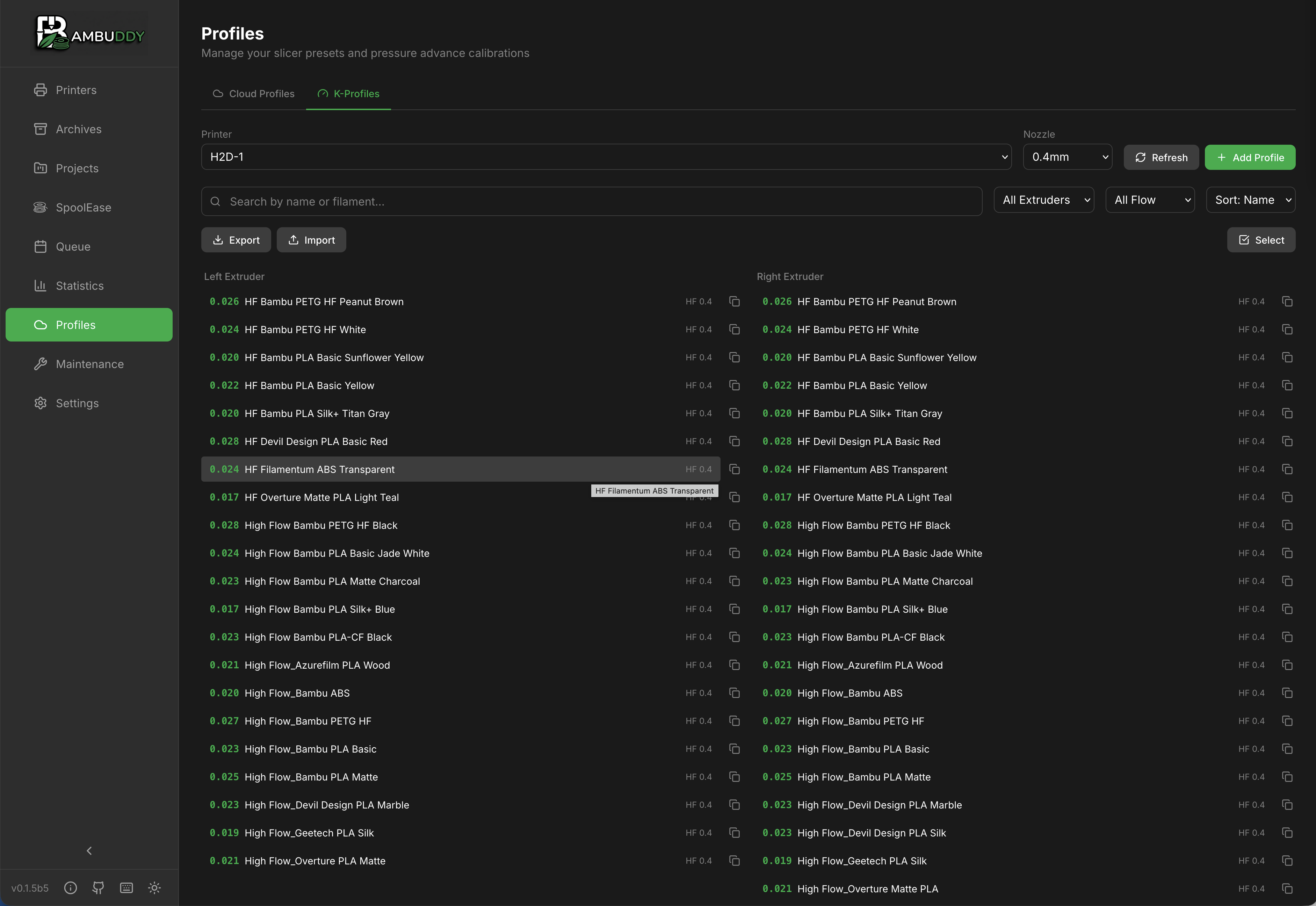
Manage pressure advance (K-factor) settings for optimal print quality across different filaments.
What is Pressure Advance?
Pressure advance (K-factor) compensates for filament compression in the extruder:
- Too low: Bulging corners, blobs at start
- Too high: Gaps at corners, weak lines
- Just right: Clean corners, consistent extrusion
Different filaments need different K values.
K-Profile Storage
Bambuddy stores K-profiles per:
- Printer - Each printer has its own values
- Filament - Different K per material
- Nozzle - Values vary by nozzle size
Retrieving K-Profiles
From Printer
Pull current K-profiles from your printer:
- Go to K-Profiles page
- Select your printer
- Click Fetch from Printer
- K-values are downloaded
What's Retrieved
| Data | Description |
|---|---|
| Material | Filament type |
| K-factor | Pressure advance value |
| Nozzle | Nozzle diameter |
| Notes | Any stored notes |
Pushing K-Profiles
To Printer
Send K-profiles to your printer:
- Go to K-Profiles page
- Select profiles to push
- Click Push to Printer
- Profiles are uploaded
Overwrites Existing
Pushing profiles overwrites the printer's current K values for that material.
Editing K-Profiles
Modify Values
- Click on a K-profile
- Edit the K-factor value
- Add optional notes
- Click Save
Value Guidelines
| Material | Typical K Range |
|---|---|
| PLA | 0.02 - 0.06 |
| PETG | 0.06 - 0.12 |
| ABS/ASA | 0.04 - 0.08 |
| TPU | 0.20 - 0.50 |
These are starting points
Actual values depend on your specific printer, filament brand, and nozzle.
Adding K-Profiles
Manual Entry
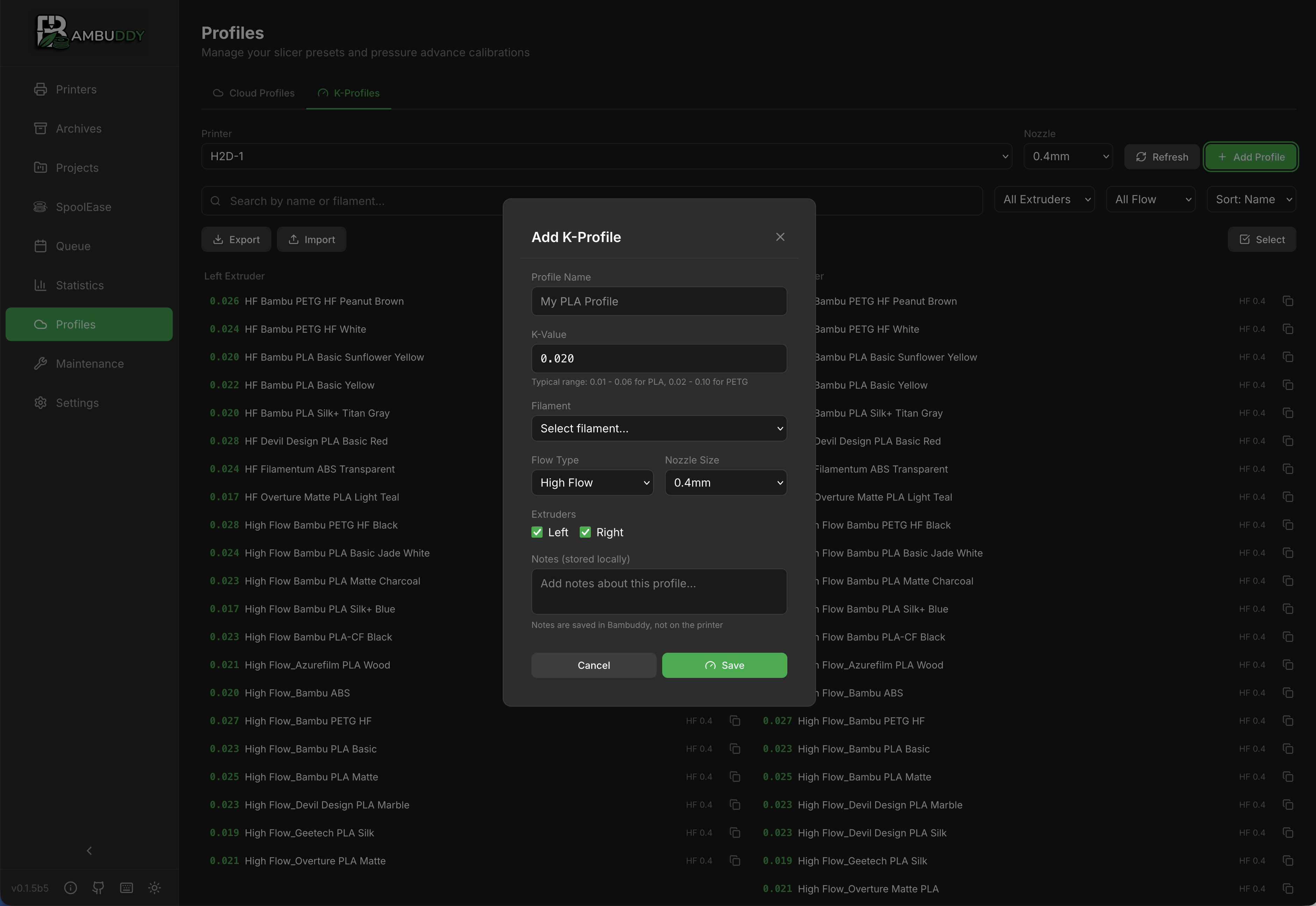
- Click Add K-Profile
- Select material type
- Enter K-factor value
- Select nozzle size
- Add notes if desired
- Click Save
From Calibration
After running calibration:
- Note the optimal K value
- Add or update the profile
- Save for future use
Calibration
Running K-Factor Calibration
Bambu Lab printers include built-in calibration:
- Load the filament to calibrate
- From printer or Bambu Studio, run flow calibration
- Observe the test pattern
- Note the optimal K value
- Update the K-profile in Bambuddy
Third-Party Methods
Alternative calibration methods:
- Marlin K-factor test patterns
- Pressure advance tower prints
- Corner flow tests
Copying Profiles
Between Printers
Copy K-profiles to another printer:
- Select source profiles
- Click Copy to Printer
- Select destination printer
- Profiles are copied
Fine-tune After Copy
Copied values may need adjustment for different hardware.
Sync Status
Profile States
| Status | Meaning |
|---|---|
| Synced | Matches printer |
| Modified | Local changes not pushed |
| New | Not on printer yet |
Keeping in Sync
- Fetch after printer changes
- Push after local edits
- Regular sync recommended
Comparing Values
View Differences
Compare K-values between:
- Different printers
- Bambuddy vs printer
- Different materials
Backup
Exporting K-Profiles
- Go to K-Profiles
- Click Export
- Download JSON file
Importing K-Profiles
- Click Import
- Select JSON file
- Review and confirm
Useful for backup or transferring to new installations.
Troubleshooting
Fetch Failed
- Verify printer connection
- Check printer is not busy
- Try again
Push Failed
- Check printer is idle
- Verify connection status
- Ensure no active prints
Values Don't Apply
- Verify profile was pushed
- Check material matches slicer
- Re-slice if needed
Tips
Calibrate Each Filament
Even same material from different brands may need different K values.
Note the Brand
Add brand/color to notes for easy identification.
Regular Updates
Recalibrate after nozzle changes or significant printer maintenance.
Start Conservative
When unsure, start with a lower K value and increase gradually.
Backup Before Changes
Export profiles before making major changes.