K-Profiles
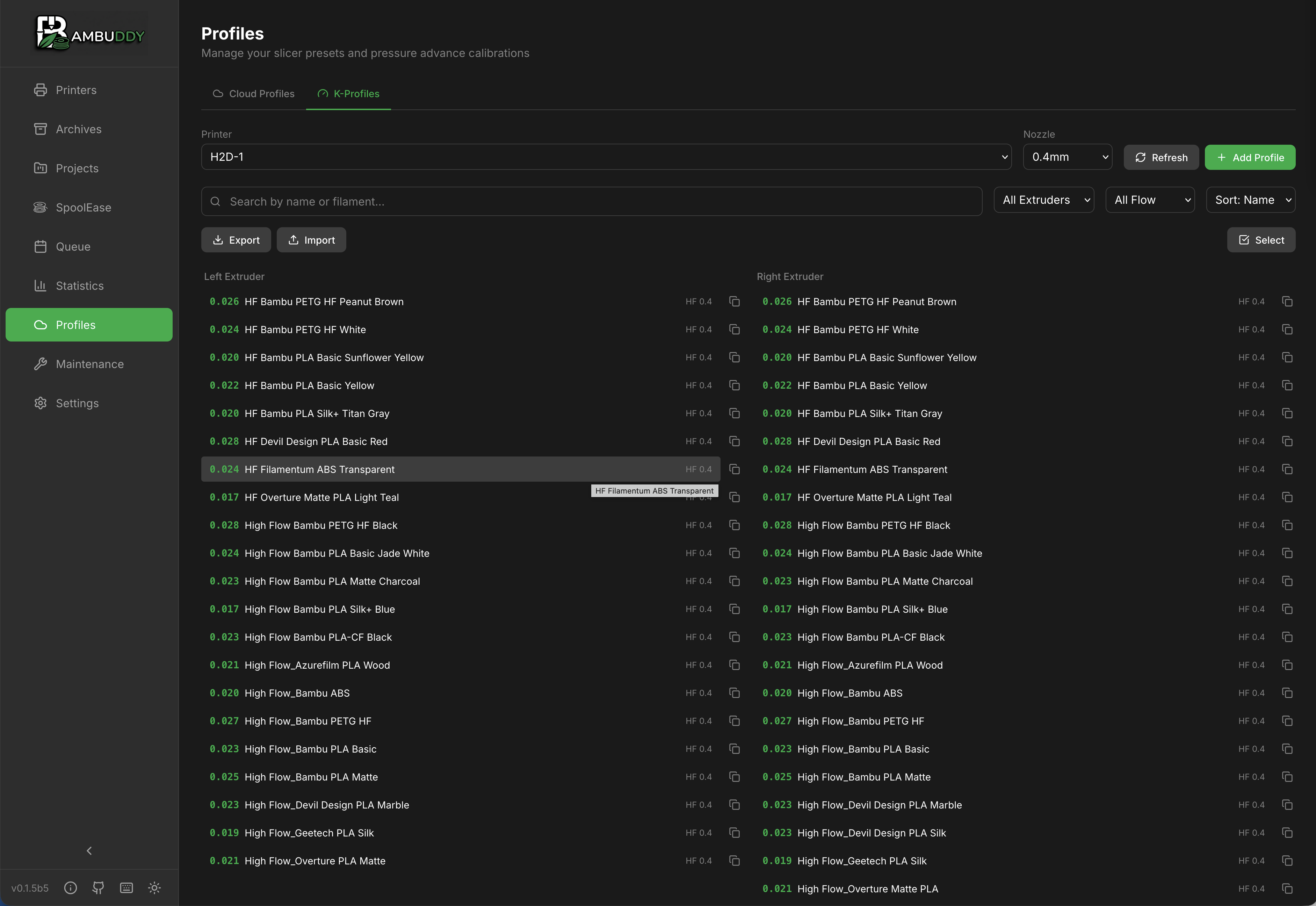
Manage pressure advance (K-factor) settings for optimal print quality across different filaments.
What is Pressure Advance?
Pressure advance (K-factor) compensates for filament compression in the extruder:
- Too low: Bulging corners, blobs at start
- Too high: Gaps at corners, weak lines
- Just right: Clean corners, consistent extrusion
Different filaments need different K values.
K-Profile Storage
Bambuddy stores K-profiles per:
- Printer - Each printer has its own values
- Filament - Different K per material
- Nozzle - Values vary by nozzle size
Retrieving K-Profiles
From Printer
Pull current K-profiles from your printer:
- Go to K-Profiles page
- Select your printer
- Click Fetch from Printer
- K-values are downloaded
What's Retrieved
| Data | Description |
|---|---|
| Material | Filament type |
| K-factor | Pressure advance value |
| Nozzle | Nozzle diameter |
| Flow type | High Flow or Standard — only on printers that report it |
| Notes | Any stored notes |
Flow type on printers that don't report it
Most printers send their calibration table without a nozzle identity, so the flow type of an existing profile can't be read back. Those profiles show as Standard — the same assumption Bambu Studio makes — and you can change it freely when creating a profile.
Your choice is sent to the printer, but on those models the firmware discards it: the calibration is stored against the filament and its calibration index, not against a flow type. So a profile you saved as High Flow will read back as Standard, in Bambu Studio as well as in Bambuddy. Only printers that return a nozzle identity — the H2D series — display the flow type you chose.
The Flow Type field is hidden only on the A1, A1 Mini and A2L, which are sold with a single nozzle variant. Every other model, including the single-nozzle P1P, P1S, P2S, X1, X1 Carbon, X1E and H2S, offers both Standard and High Flow.
Pushing K-Profiles
To Printer
Send K-profiles to your printer:
- Go to K-Profiles page
- Select profiles to push
- Click Push to Printer
- Profiles are uploaded
Overwrites Existing
Pushing profiles overwrites the printer's current K values for that material.
Editing K-Profiles
Modify Values
- Click on a K-profile
- Edit the K-factor value
- Add optional notes
- Click Save
Value Guidelines
| Material | Typical K Range |
|---|---|
| PLA | 0.02 - 0.06 |
| PETG | 0.06 - 0.12 |
| ABS/ASA | 0.04 - 0.08 |
| TPU | 0.20 - 0.50 |
These are starting points
Actual values depend on your specific printer, filament brand, and nozzle.
Adding K-Profiles
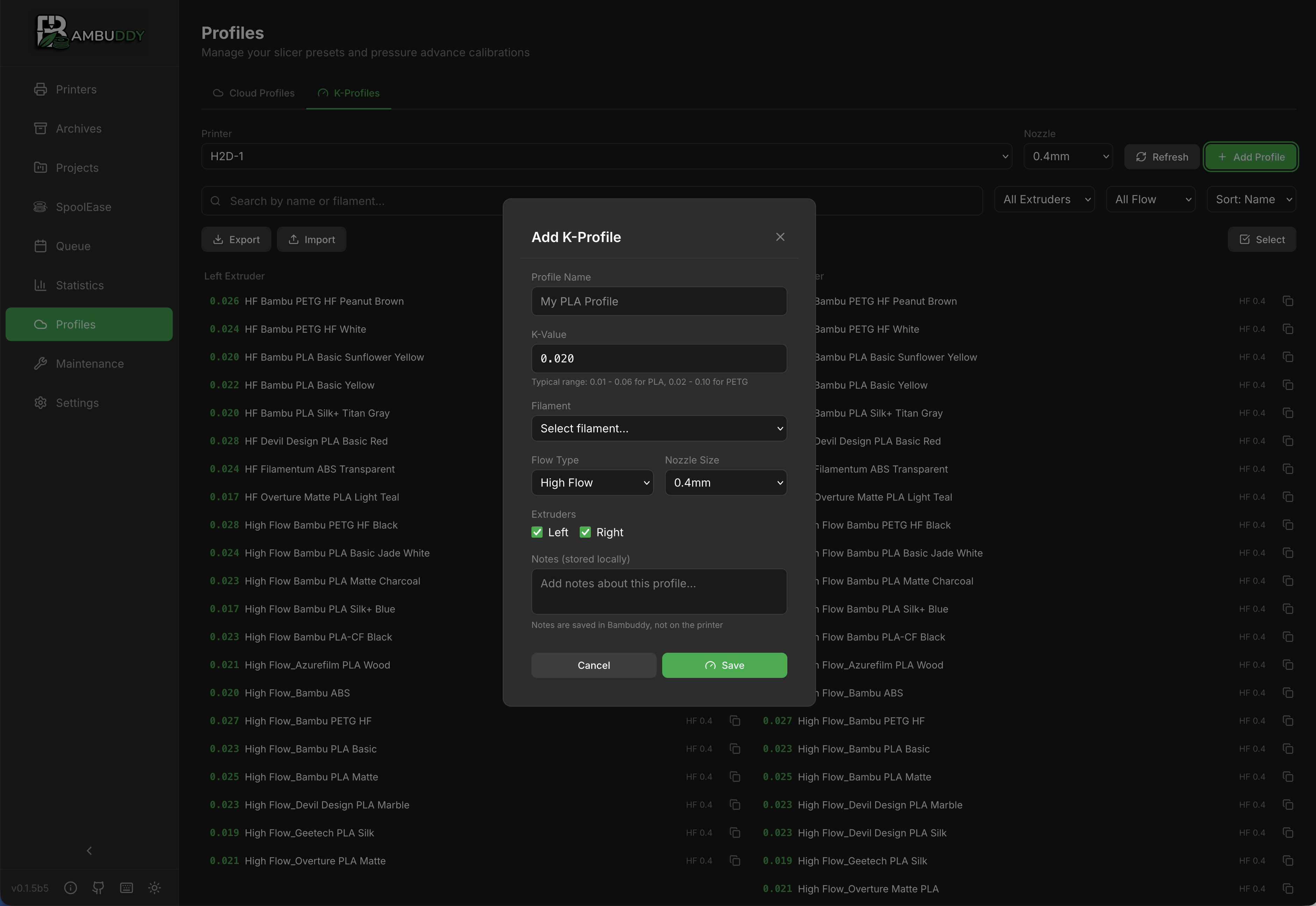
Manual Entry
- Click Add K-Profile
- Pick the filament
- Enter K-factor value
- Select nozzle size
- Add notes if desired
- Click Save
The filament list is searchable and grouped by where each entry came from, in the order Bambuddy uses everywhere:
| Group | Source |
|---|---|
| Imported | Presets you imported under Profiles → Local Profiles |
| Orca Cloud | Your synced OrcaSlicer profiles |
| Bambu Cloud | Your Bambu Lab account's filament presets |
| Built-in | Bambuddy's built-in Bambu filament table |
Each group shows its own library in full. Within a group a filament appears once — a Bambu Cloud account carries one copy of each filament per printer model, and those collapse into a single entry. The Built-in group is a static copy of the same Bambu catalogue, so it only lists filaments none of the groups above it offer.
That group is always there, so you can create a profile with no cloud account connected and nothing imported — including on a printer that has no K-profiles yet.
Imported and Orca Cloud filaments are filed under a generic
The printer indexes its calibration table by Bambu filament ID, and imported / Orca profiles don't carry one. Those are stored against the closest generic Bambu filament for their material (an imported PETG lands on Generic PETG). The K value is yours; only the ID the printer files it under is generic.
From Calibration
After running calibration:
- Note the optimal K value
- Add or update the profile
- Save for future use
Calibration
Running K-Factor Calibration
Bambu Lab printers include built-in calibration:
- Load the filament to calibrate
- From printer or Bambu Studio, run flow calibration
- Observe the test pattern
- Note the optimal K value
- Update the K-profile in Bambuddy
Third-Party Methods
Alternative calibration methods:
- Marlin K-factor test patterns
- Pressure advance tower prints
- Corner flow tests
Copying Profiles
Between Printers
Copy K-profiles to another printer:
- Select source profiles
- Click Copy to Printer
- Select destination printer
- Profiles are copied
Fine-tune After Copy
Copied values may need adjustment for different hardware.
Sync Status
Profile States
| Status | Meaning |
|---|---|
| Synced | Matches printer |
| Modified | Local changes not pushed |
| New | Not on printer yet |
Keeping in Sync
- Fetch after printer changes
- Push after local edits
- Regular sync recommended
Comparing Values
View Differences
Compare K-values between:
- Different printers
- Bambuddy vs printer
- Different materials
Backup
Exporting K-Profiles
- Go to K-Profiles
- Click Export
- Download JSON file
Importing K-Profiles
- Click Import
- Select JSON file
- Review and confirm
Useful for backup or transferring to new installations.
Troubleshooting
Fetch Failed
- Verify printer connection
- Check printer is not busy
- Try again
Push Failed
- Check printer is idle
- Verify connection status
- Ensure no active prints
Values Don't Apply
- Verify profile was pushed
- Check material matches slicer
- Re-slice if needed
Profile Missing When Configuring a Slot
The K profile dropdown in Configure AMS Slot shows the profiles that suit the selected filament preset first, then every other profile on the printer under Other K profiles on this printer. If a profile is not in the first group, look for it in the second — see which K profiles are offered.
Tips
Calibrate Each Filament
Even same material from different brands may need different K values.
Note the Brand
Add brand/color to notes for easy identification.
Regular Updates
Recalibrate after nozzle changes or significant printer maintenance.
Start Conservative
When unsure, start with a lower K value and increase gradually.
Backup Before Changes
Export profiles before making major changes.