Notifications
Get notified about print events via WhatsApp, Telegram, Discord, Email, Home Assistant, and more.
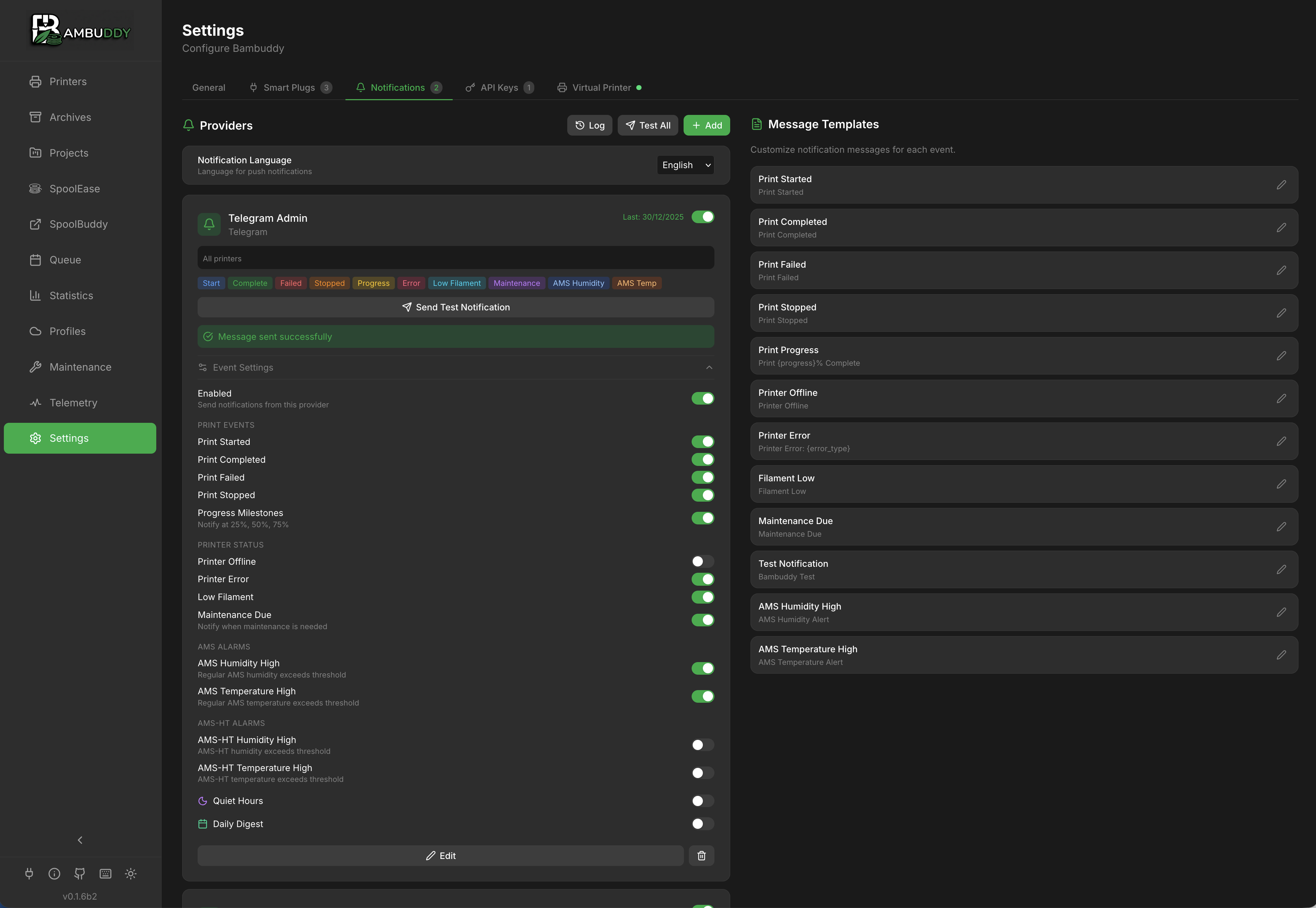
Supported Providers
| Provider | Setup | Features |
|---|---|---|
| ntfy | Easy | Free, no account needed |
| Easy | Via CallMeBot | |
| Discord | Easy | Channel webhooks |
| Pushover | Easy | Professional push service |
| Telegram | Medium | Via Telegram Bot |
| Medium | SMTP email | |
| Home Assistant | Easy | Persistent notifications in HA dashboard |
| Webhook | Flexible | Custom HTTP POST |
Adding a Provider
- Go to Settings > Notifications
- Click Add Provider
- Select provider type
- Enter configuration
- Click Send Test to verify
- Configure event triggers
- Click Add
Provider Setup Guides
ntfy (Easiest)
Simple topic-based notifications - no account needed!
-
Choose a unique topic name (e.g.,
my-printer-xyz123) -
Subscribe on your phone:
- Install ntfy app (Android / iOS)
-
Subscribe to your topic
-
In Bambuddy, enter:
| Field | Value |
|---|---|
| Topic | Your topic name |
| Server | https://ntfy.sh (or self-hosted) |
Keep Topic Secret
Anyone who knows your topic can send you messages. Use a random string.
WhatsApp (CallMeBot)
Free WhatsApp notifications:
-
Add CallMeBot to contacts: +34 644 51 95 23
-
Send via WhatsApp:
I allow callmebot to send me messages -
You'll receive an API key
-
In Bambuddy, enter:
| Field | Value |
|---|---|
| Phone Number | Your number with country code (e.g., +1234567890) |
| API Key | Key from CallMeBot |
Discord
Via channel webhooks:
- In Discord, go to channel settings
- Navigate to Integrations > Webhooks
- Click New Webhook
- Customize name/avatar
- Click Copy Webhook URL
- In Bambuddy, paste the URL
Pushover
Professional push notification service:
- Create account at pushover.net
- Install Pushover app on your device
- Create an Application in dashboard
- In Bambuddy, enter:
| Field | Value |
|---|---|
| User Key | From Pushover account |
| API Token | From your Application |
Telegram
Via Telegram Bot:
- Message @BotFather
- Send
/newbotand follow prompts - Save the Bot Token
- Message @userinfobot to get your Chat ID
- In Bambuddy, enter:
| Field | Value |
|---|---|
| Bot Token | From BotFather |
| Chat ID | Your user/group ID |
Group Notifications
Add the bot to a group and use the group's chat ID for team notifications.
Email (SMTP)
Send via email:
| Field | Example |
|---|---|
| SMTP Server | smtp.gmail.com |
| Port | 587 (STARTTLS) or 465 (SSL) |
| Security | STARTTLS or SSL |
| Username | Your email |
| Password | App password (not regular password) |
| From Address | Sender email |
| To Address | Recipient email |
Gmail Setup
- Enable 2-Factor Authentication
- Generate an App Password
- Use:
smtp.gmail.com, Port 587, STARTTLS
Home Assistant
Zero-config notifications if Home Assistant is already connected:
- Ensure HA is configured in Settings > Network > Home Assistant
- Add a notification provider and select Home Assistant
- No additional fields needed — click Send Test to verify
Notifications appear as persistent notifications in your HA dashboard.
Forward to Mobile
Use HA automations to forward persistent notifications to your phone via the HA Companion app, WhatsApp, or any other service.
Webhook (Custom)
For custom integrations:
| Field | Value |
|---|---|
| URL | Your webhook endpoint |
| Headers | Optional (e.g., Authorization) |
Payload format:
{
  "event": "print_complete",
  "printer": "Workshop X1C",
  "filename": "benchy.3mf",
  "duration": "2h 15m",
  "filament_grams": "15.2",
  "filament_details": "PLA: 15.2g",
  "timestamp": "2024-01-15T14:30:00Z"
}
For failed/stopped prints, additional fields are included:
{
  "event": "print_failed",
  "printer": "Workshop X1C",
  "filename": "benchy.3mf",
  "duration": "0h 45m",
  "filament_grams": "7.6",
  "filament_details": "PLA: 7.6g",
  "progress": "50",
  "reason": "Filament runout",
  "timestamp": "2024-01-15T15:15:00Z"
}
When a camera snapshot is available (e.g. First Layer Complete, Print Started, Print Completed), the payload includes a base64-encoded JPEG image:
{
  "title": "First Layer Complete",
  "message": "Workshop X1C: benchy.3mf\nLayer 1/200 done",
  "timestamp": "2024-01-15T14:30:00Z",
  "source": "Bambuddy",
  "image": "/9j/4AAQSkZJRg..."
}
Decoding the image
The image field contains a standard base64-encoded JPEG. In Home Assistant automations, you can decode it with a template sensor or pass it to notify.mobile_app_* as image data. In Node-RED, use a Buffer.from(msg.payload.image, 'base64') node. The field is only present when a snapshot was captured — not all events include images.
Event Triggers
Print Events
| Event | Description |
|---|---|
| Print Started | Print job begins |
| Plate Not Empty | Objects detected on build plate before print (bypasses quiet hours) |
| Print Completed | Print finishes successfully (includes filament usage) |
| Print Failed | Print fails or errors (includes scaled filament usage and progress) |
| Print Stopped | Manual cancellation (includes scaled filament usage and progress) |
| Missing Spool Assignment | Print started with required AMS trays that have no assigned spool (off by default) |
| First Layer Complete | First layer finished — check adhesion remotely (includes camera snapshot) |
| Bed Cooled | Bed temperature dropped below threshold after print (configurable in Settings) |
| Progress Milestones | At 25%, 50%, 75% |
Printer Events
| Event | Description |
|---|---|
| Printer Offline | Connection lost |
| Printer Error | HMS errors with human-readable descriptions (853 codes translated) |
| Low Filament | Filament running low |
| Maintenance Due | Scheduled maintenance is due |
AMS Events
| Event | Description |
|---|---|
| AMS Humidity High | AMS humidity exceeds threshold |
| AMS Temperature High | AMS temperature exceeds threshold |
| AMS-HT Humidity High | AMS-HT humidity exceeds threshold |
| AMS-HT Temperature High | AMS-HT temperature exceeds threshold |
Print Queue Events
| Event | Default | Description |
|---|---|---|
| Job Added | Off | Job added to queue |
| Job Assigned | Off | Model-based job assigned to a printer |
| Job Started | Off | Queue job started printing |
| Job Waiting | On | Job waiting for filament (actionable) |
| Job Skipped | On | Job skipped due to previous print failure |
| Job Failed | On | Job failed to start (upload error, etc.) |
| Queue Complete | Off | All queued jobs finished |
Actionable Queue Notifications
The most important queue notifications (Waiting, Skipped, Failed) are enabled by default because they require user action - load the right filament, check why a print failed, etc.
Enable/disable each event per provider.
Quiet Hours
Suppress notifications during sleep:
- Enable Quiet Hours toggle
- Set Start Time (e.g., 22:00)
- Set End Time (e.g., 07:00)
Notifications during quiet hours are silently skipped.
Per-Printer Filtering
Limit notifications to specific printers:
- Open provider settings
- Find Printers section
- Select specific printers or "All"
Only events from selected printers trigger notifications.
Daily Digest
Batch notifications into a summary:
- Enable Daily Digest toggle
- Set Digest Time (e.g., 08:00)
How It Works
- Events are collected (not sent immediately)
- At digest time, one summary is sent
- Includes counts and details
Example Digest
Daily Print Summary (Dec 14)

✅ 3 prints completed
❌ 1 print failed
⏱️ Total time: 8h 45m
🧵 Filament used: 245g

Details:
- Benchy (2h 15m) ✅
- Phone Stand (45m) ✅
- Cable Clip (15m) ✅
- Prototype v3 (3h 30m) ❌
Message Templates
Customize notification messages:
Accessing Templates
- Go to Settings > Notifications
- Click Templates tab
- Select event type to edit
Variables
Insert dynamic content with {variable}:
Print Events:
{printer}- Printer name{filename}- Print filename{duration}- Print time{filament_grams}- Total filament used in grams (scaled by progress for failed/stopped prints){filament_details}- Per-filament breakdown (e.g., "PLA: 15.2g" or "PLA: 10.0g | PETG: 5.0g"){estimated_time}- Estimated duration (e.g., "1h 23m"){eta}- Wall-clock completion time (e.g., "15:53" or "3:53 PM"), respects your time format setting{progress}- Completion percentage (available for failed/stopped prints){reason}- Failure reason{finish_photo_url}- Camera snapshot URL (print_complete, print_failed, print_stopped)
Printer Events:
{printer}- Printer name{error_type}- HMS error type{error_detail}- Error description
First Layer Complete:
{printer}- Printer name{filename}- Print filename{total_layers}- Total layer count
Bed Cooled:
{printer}- Printer name{bed_temp}- Current bed temperature{threshold}- Configured threshold{filename}- Print filename
Missing Spool Assignment:
{printer}- Printer name{missing_slots}- Comma-separated slot labels (e.g., "A1, A3"){missing_slot_details}- Per-slot breakdown with expected profile (e.g., "- A1: PLA Basic")
AMS Events:
{printer}- Printer name{slot}- AMS slot{remaining_percent}- Filament left{humidity}- Humidity level
Common:
{timestamp}- Event time{app_name}- "Bambuddy"
Reset to Default
Click reset to restore original template.
Finish Photo URL
Include a camera snapshot in notifications when prints complete:
- Go to Settings > Network
- Set External URL to your Bambuddy server's address (e.g.,
http://192.168.1.100:8000) - Edit your template to include
{finish_photo_url}
External URL Required
The External URL setting is required for finish photos to work. This is auto-detected from your browser when you first visit the Network settings page.
Example template:
Print completed!
Printer: {printer}
File: {filename}
Filament: {filament_details}
Photo: {finish_photo_url}
Testing
Always test before relying on notifications:
- Configure provider
- Click Send Test
- Verify you receive the message
- Check message formatting
Quick Disable
Quickly disable all notifications:
- Find the Quick Disable button
- Click to toggle all notifications off
- Click again to re-enable
Useful during maintenance or troubleshooting.
Tips
Start with ntfy
ntfy is the simplest setup - no account needed, just pick a topic.
Use Quiet Hours
Avoid middle-of-night alerts with quiet hours.
Multiple Providers
Set up multiple providers for redundancy.
Progress for Long Prints
Enable progress milestones for prints over a few hours.
Customize Templates
Personalize messages to include only info you need.
Test Regularly
Periodically test notifications to ensure they still work.
Bed Cooled Threshold
Configure the bed cooled temperature threshold in Settings > Notifications. Default is 35°C. The bed is polled every 15 seconds after a print completes, with a 30-minute timeout.
Plate Not Empty Bypasses Quiet Hours
Plate detection notifications are always sent immediately, even during quiet hours or when digest mode is enabled. This ensures you're alerted to potential issues before a print starts.
:material-account-bell: Per-User Email Notifications
When Advanced Authentication is enabled, individual users can receive email notifications for their own print jobs. This is separate from the provider-based notification system above — it sends emails directly to the user who submitted the print.
Requirements
- Advanced Authentication must be enabled
- SMTP must be configured
- "User Notifications" must be enabled in Settings → Notifications
- User must have an email address on their account
- User must have the
notifications:user_emailpermission (Administrators and Operators by default)
Supported Events
| Event | Description |
|---|---|
| Print Started | Your print job has begun |
| Print Completed | Your print job finished successfully |
| Print Failed | Your print job encountered an error |
| Print Stopped | Your print job was cancelled |
Setup
- Enable User Notifications in Settings → Notifications
- Click Notifications in the sidebar
- Toggle each event type on or off
- Click Save
See Authentication → Per-User Email Notifications for full details.